 Prompt
How to Use Artificial Intelligence on Your Phone

Almost everyone meets artificial intelligence on a computer, and that is where it looks most powerful: big screen, long text, a file open beside it. Except the device that stays in your hand all day is the other one, and it has a camera pointed at the problem in the minute the problem shows up.
That difference decides what is worth doing on a phone. In this lesson you will see what your phone solves better than your computer, what it solves worse, why there is no AI to download, what you can do by talking, what works without internet, and how to switch off the AI that came with the handset. About 8 minutes of reading.
The rule: the phone wins when the thing is right in front of you
Keep this sentence, because it organises everything else: on a computer you produce, on a phone you decide. The useful question is never “which of the two is better”. It is another one: where is the thing I am asking about?
If it is right in front of you and the answer is only good for right now, the phone wins comfortably. The wall you are about to paint, the medicine in your hand, the car in the garage, the food left in the fridge. Describing any of that in writing is slow and imprecise; photographing it takes a second and leaves nothing out.
| The situation | What handles it better | Why |
|---|---|---|
| The thing is in front of you now | phone | a photo explains in one second what text takes a paragraph to say |
| A quick buying decision | phone | the answer is only worth anything while you are in the shop |
| A long document to check | computer | you need to read the answer and the original at the same time |
| Text that goes out with your name on it | computer | proofreading on a small screen misses what jumps out on a big one |
| Spreadsheets, code and files | computer | the result has to go somewhere afterwards |
You do not download an AI, you download a window into one
One of the most common searches on the subject is how to download or install artificial intelligence on a phone, and the answer is the part almost nobody explains: there is no AI program that fits on your handset. The model runs on enormous servers, and the app you install is a window that sends your question over there and brings the answer back.
Two practical consequences follow. Your phone browser does the same job: opening the tool’s site and pinning the shortcut to your home screen gives you nearly the same thing as the app, without using up storage. And a cheap handset does not give worse answers than an expensive one, because the heavy work does not happen on it. What a better phone changes is the camera, and that does count.
On whether to pay for any of it, the lesson on what you can do for free has the full picture. For everything in this lesson, the free tier is enough.
The camera is your phone’s keyboard
This is where the phone leaves the computer behind: every photo you take is a ready made request, and the ones we take in a hurry are exactly the ones that need fixing. The blurry shot of a moment that will not come back is case number one, and Sharpen a Blurry Photo in Seconds exists for it. The second most common complaint about phones is light: you photograph someone against a window and the face goes dark, or the sun blows out half the scene. Fix an Overexposed or Sun Bleached Photo recovers what is still in the file.
There is also the admin use, which nobody posts on social media and everybody needs: the ID photo taken in a rush, with a crooked background and office lighting, becomes a presentable portrait with Turn a Passport Photo into a Proper Portrait. And the best use of all happens at your mother’s house: the old photo is on the wall or inside the album, you are not going to take it out to scan it, so you photograph it with the phone and use Restore an Old Wedding Photo with AI. Phone scanning has been good enough for years.
How that works underneath, and what to ask so the AI does not invent too much, is the whole subject of the lesson on creating an image from a photo of yours.
Deciding in the shop, with the thing in front of you
This category only exists on a phone, because the answer loses its value the moment you walk out. You are in the paint shop with two colour cards in your hand and no idea how any of it looks in your living room: photograph the wall and settle it with Try a Wall Color on Your Photo before you buy the wrong tin.

Buying online, where trying it on is not an option, follows the same logic: Try the Clothes On Your Photo Before You Buy puts the item on your photo, on your body rather than the mannequin’s.
And when the purchase is a big one, the problem stops being the single item and becomes the combination. Before buying flooring, worktop and paint in three different shops, A Renovation Moodboard Before You Buy Anything puts it all in one image, and that is where the pairing that does not work shows up.
Talking instead of typing
Phone keyboards are slow and tiring, which is why dictation changes the experience so much. Thirty seconds of talking into the microphone button gives more context than you would have the patience to type.
That is excellent for the request that needs a rant before the conclusion. A Difficult Message, Written with Tact works better spoken than typed: you tell the whole mess the way it sounds in your head, anger and all, and you get back a version you can actually send. Nobody types the whole story on a phone, and it is the whole story that makes the text come out right.
When travelling, that same button becomes a conversation translator. Essential Phrases for Your Trip handles the preparation, and day to day you speak your sentence and show the screen to the person. It is worth generating the list before you fly and keeping it saved, for the reason that comes up two sections from now.
What gets solved at the pharmacy and at the fridge door
Two domestic scenes show the kind of thing we would never open a computer for, and that takes a minute on a phone. The first is the medicine leaflet. That sheet folded into eight, with two millimetre type and technical vocabulary, is the perfect example of text that exists in order not to be read. Photograph it and run it through Understand Your Medicine Leaflet in Plain Language, which turns it into human language and tells you what to ask the person who prescribed it. Worth remembering that this is reading, not medical opinion: dose and substitution are decided by a professional.
The second is dinner. Seven in the evening, you open the fridge, there is half a carrot, a tub of yesterday’s rice and two eggs. Chef of What Is in Your Fridge was written for that hour, and the phone is the only device that is with you in the kitchen.
Selling from your phone without building a studio
Anyone who sells online knows the bottleneck: the photo. The listing is written, the price is set, and the item sits there because the picture looks like it was taken in a basement.
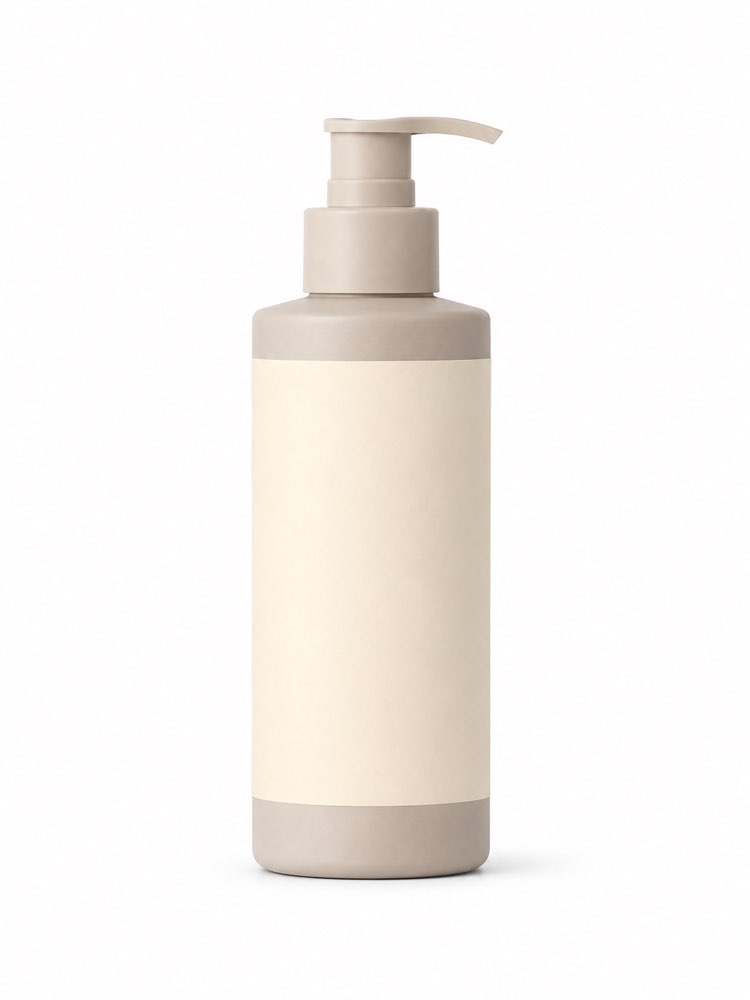
For small products, Product Photo for E-commerce turns the shot taken on the kitchen table into a catalogue image. It is not decoration: a messy background is what makes a buyer suspicious before they read the description.
For what does not fit on a table, Car Photo for a Resale Listing with AI deals with the framing and the setting of the vehicle. One ethical line applies to both: improving the presentation is fair, hiding a dent or a stain is not, and a listing that delivers something else comes back as a return and a bad review.
The AI that came with the handset, and the one that works offline
You may not have installed anything and already have AI on your phone: handsets now ship with an assistant, a dedicated button and suggestions appearing inside the keyboard. Two of the most frequent searches are how to turn that on and how to turn it off, which says plenty about the reception.
The practical rule is simple: the built in assistant is convenient for the short command (an alarm, a quick message, finding a photo in the gallery) and weak at the elaborate request, which is where the prompts on this site come in. If it is getting in the way, every handset lets you switch it off in settings, and switching it off breaks nothing.
On working without internet, the honest answer is that almost nothing does: the model runs on a server, and with no connection there is no answer. Small models running on the handset itself do exist, fine for short tasks and still a long way from what you use in the browser. Hence the travel tip: generate the phrase list before you fly, while you still have signal.
What is not worth doing on a phone
This is the section almost nobody writes, and it is the most useful one. Some things the phone does, and does badly.
A long document is the clearest example. A Faithful Summary of a Long Document works well on any device, but checking the summary against the original on a six inch screen is where the error slips through. Fire the request off from your phone and read it properly later.
Text that goes out with your name on it needs the same care, because proofreading on a small screen lets through repetition and clumsy sentences that jump out on a computer. And an answer with a number, a proper name, a law or a quote is still a hypothesis: the lesson on why AI gets things wrong has the three question checking routine. On a phone we are in a hurry, and hurry is the natural habitat of the thing nobody checked.
The five minute routine to start today
If you only do this over the next week, your phone already changes job. The sequence is in order of effort:
- Pin the tool to your home screen, through the browser or the app. If it is not one tap away, you will not use it in the supermarket queue, which is where it earns its keep.
- Fix a photo that has been sitting in your gallery. Pick one worth the trouble and run it through Sharpen a Blurry Photo in Seconds. It is the fastest result to see.
- Use the microphone the first time. Say the whole request, with context and grumbling included. That is how A Difficult Message, Written with Tact was designed to be used.
- Photograph an old paper photo on your next family visit and run Restore an Old Wedding Photo with AI, keeping the original next to the restored file.
- Take a buying decision into the shop and test it on the spot with Try a Wall Color on Your Photo, instead of deciding from a sample card.

Quick questions
Do I need to install an app to use AI on my phone?
No. The site works in your phone browser, and the shortcut pinned to the home screen looks like an app. The app has small advantages, such as the microphone being closer to hand and the camera built in, and none of them changes the quality of the answer.
Can I use artificial intelligence on my phone for free?
You can, and it is what most people do. There is a usage limit per period on the free tiers, which shows up when you send several images in a row. The lesson on free AI goes through what fits in the no payment plan.
Does AI work without internet?
In practice, no. The model runs on a server, so with no connection there is no answer. Small models running on the handset already exist for short tasks, and they do not yet replace what you use in the browser. For travel, generate what you will need in advance and save it.
How do I turn off the AI on my phone?
Every handset that ships with an assistant lets you switch it off in settings, including the keyboard suggestions and the dedicated button. The path differs between Android and iPhone and between manufacturers, so search for “turn off” together with your model name. That does not stop you using AI in the browser.
Does the phone ruin the quality of the photo the AI gives back?
What limits it is the file you send, not the handset. Send the original photo from your gallery, not a screenshot or an image that has already been forwarded, because every forward compresses and erases detail. An original photo from a modern phone is more than enough material.
Is it safe to send my photo or my documents?
Treat what you send as something that has left your device and gone to another company’s server. Photos of faces and family are usually low risk. Documents with ID numbers, banking details and other people’s information deserve care: cover the sensitive part before you photograph it.
Where to start today
Pick a photo that has been sitting in your gallery for months waiting to be fixed and sort it out now, in whatever queue you are standing in. It is the smallest possible effort to feel the difference between thinking of AI as a computer program and using it as a pocket tool.
After that, the image prompts hub has every prompt that starts with a photo of yours, and the course series carries on from here. A phone is not the small version of a computer: it is the device that is with you at the moment the question happens, and that is the one advantage a big screen cannot buy.