 Prompt
Restore an Old Photo with AI: The Complete Free Guide
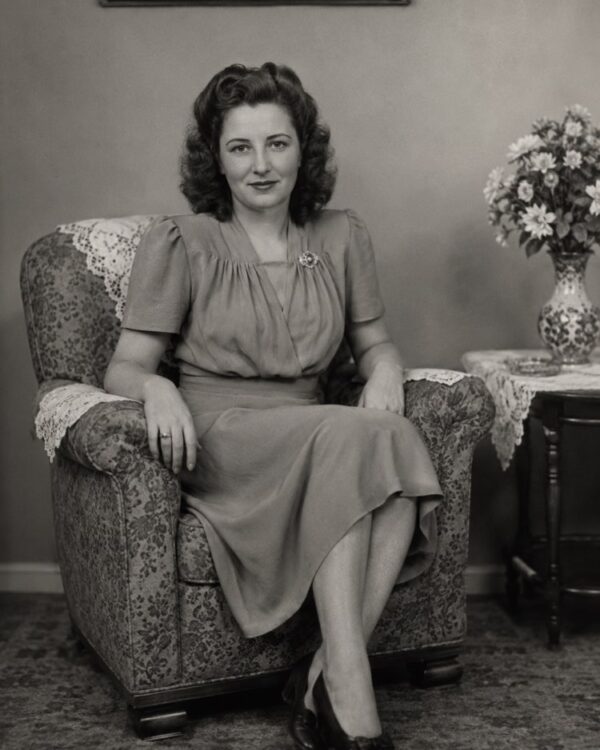
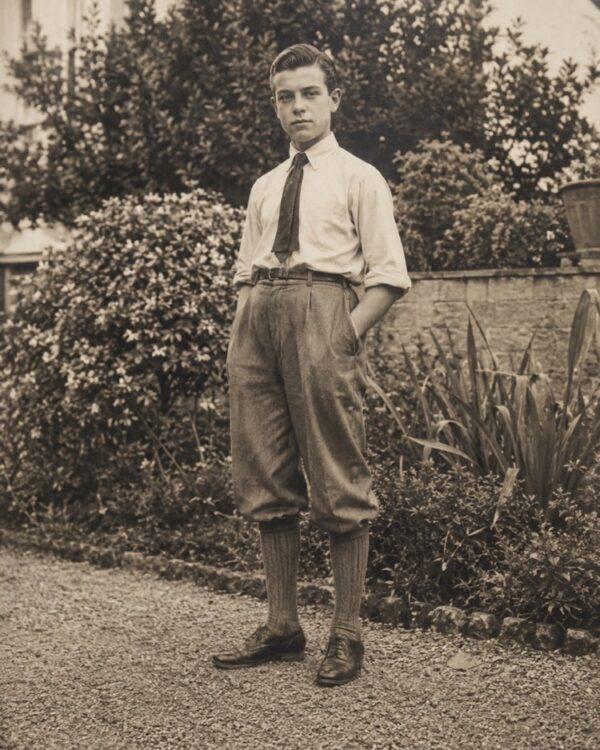
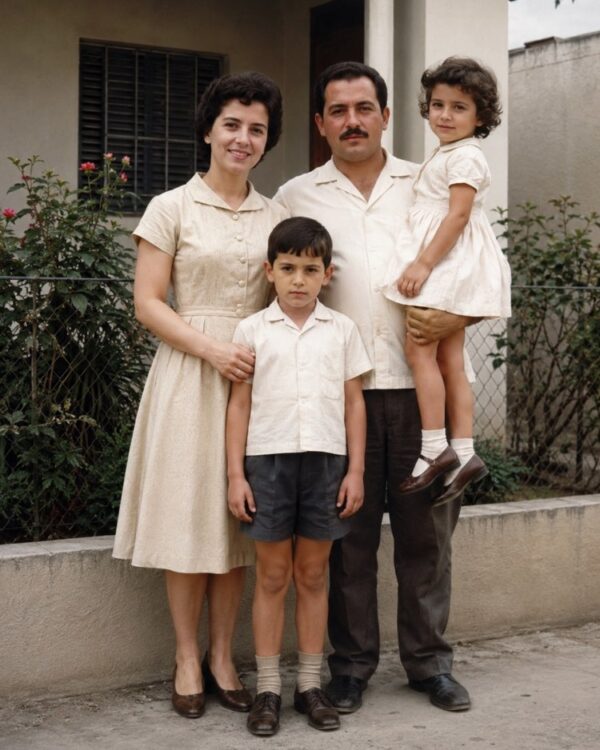
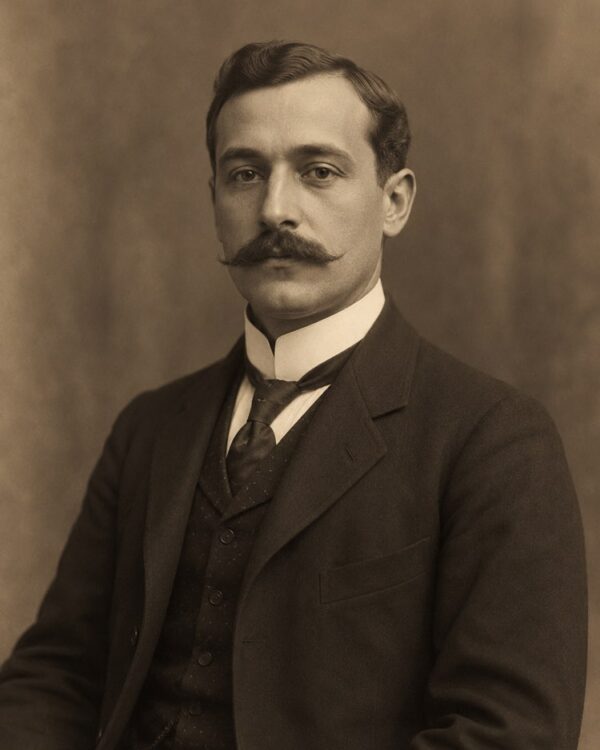
Almost every family has a box of photos that is slowly disappearing. Yellowed paper, a crease across a face, colour that turned orange, that Polaroid from the 80s which today is a greenish smudge. Until recently, fixing this was a professional job and cost real money per photo. Today you can do it with AI, for free, in a few minutes, and the result is good enough to print and frame.
The important part: there is no single prompt that solves everything. Each kind of damage needs a different instruction, and that is where most people get frustrated. This guide is organised by problem.
Before you start: digitise it properly
AI can only rebuild what it can see. A photo snapped with your phone on a table, tilted and with the shadow of your own hand across it, limits the result before you write a single word. Two simple rules solve it: diffuse light (near a window, no direct sun) and the camera parallel to the photo, not at an angle. If you have access to a scanner, better still: 600 dpi is more than enough.
Torn, creased or missing a piece
This is the most dramatic case and, oddly enough, one of the things AI handles best, because it rebuilds from what surrounds the damage. The closer the damage is to a face, the more attempts you will need.
Yellowed, stained or dusty
The yellowing of old paper and the little mould spots are the most common problem in photos up to the 70s. Here the instruction has to say to pull out the colour cast without washing out the whole image, otherwise the result ends up looking laminated.
Faded colour from the 70s, 80s and 90s
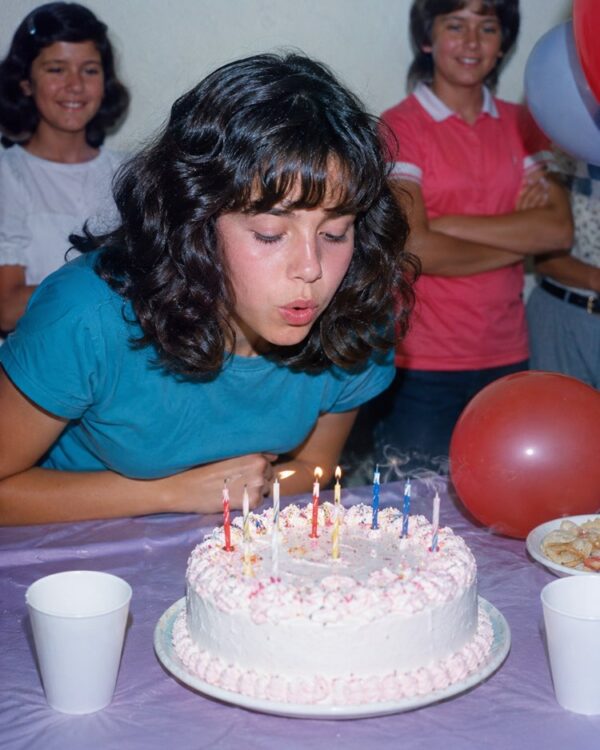
Colour film from that era fades in a very characteristic way: it loses blue and drifts towards magenta or green. It is predictable damage, which makes the correction more reliable than in the other categories.
- Revive Faded Colours in 80s Photos
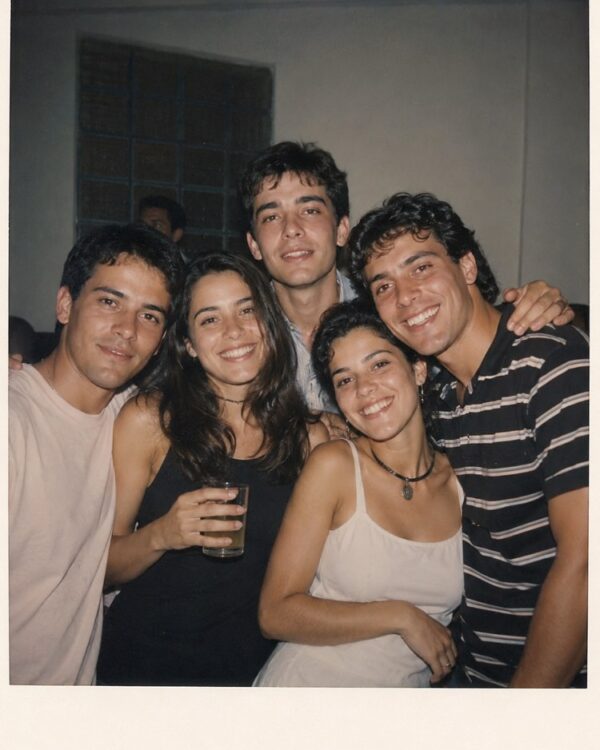
- Recover a Faded, Greenish Polaroid
- Fix an Overexposed or Sun Bleached Photo
Black and white you want to colourise
Colourising is the effect that impresses people the most, and also the one that needs the most care. The AI invents the colour: it does not know your grandmother’s dress was blue. If anyone in the family remembers a colour, say so in the prompt. It changes everything.
- Colourise a Black and White Photo with Natural Colours
- Restore and Colourise a Graduation Photo
- Restore an Old Wedding Photo with AI
Blurry, small or an ID photo
An honest warning here: sharpness cannot be created out of nothing. AI improves a slightly blurred photo a great deal, but it will not turn a smear into a portrait. A small passport photo, on the other hand, small but sharp, tends to come back surprisingly well.
- Sharpen a Blurry Photo in Seconds
- Turn a Passport Photo into a Proper Portrait
- Pull Out and Enlarge One Face from a Group Photo
Two tips that save you from disappointment
Keep the original. Always. The restored version is an interpretation, and in two years there will be a better tool. Throwing away the original scanned file is the only irreversible mistake on this list.
Be suspicious when it looks too good. If the restored face came out perfect, smooth and symmetrical, the AI probably rebuilt features instead of recovering them. Ask again, saying it should preserve the original characteristics even if the image stays imperfect. A photo with the texture of its era and the family look about it is worth more than a flawless portrait of someone who is not quite your grandmother.
There are more cases like these in restoration prompts and in old photo. If the idea is to bring the family together in a single image, there is a specific prompt for that: Bring the Whole Family into One Portrait with AI.