 Prompt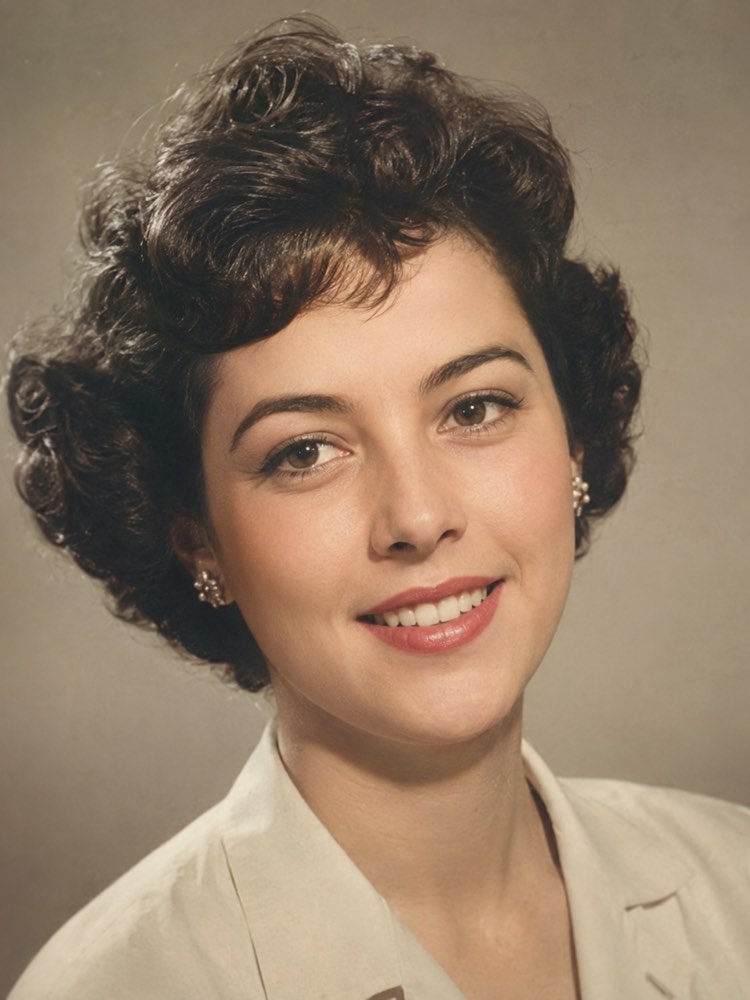
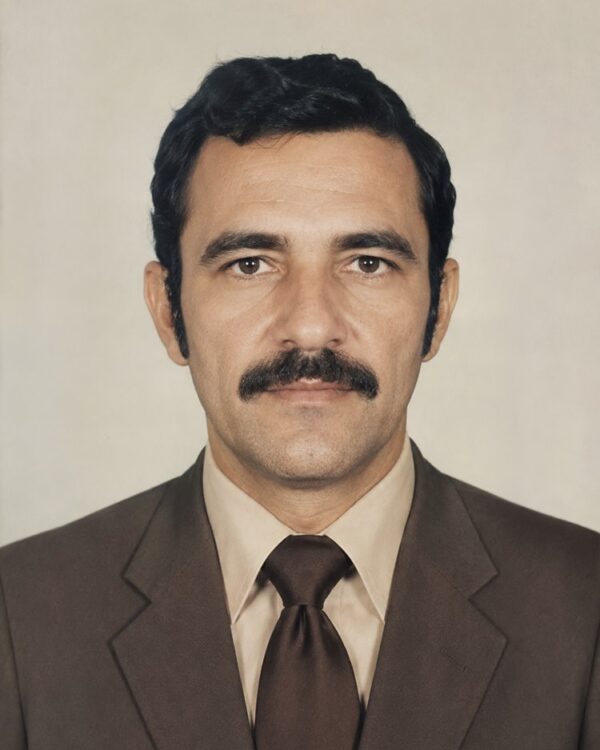
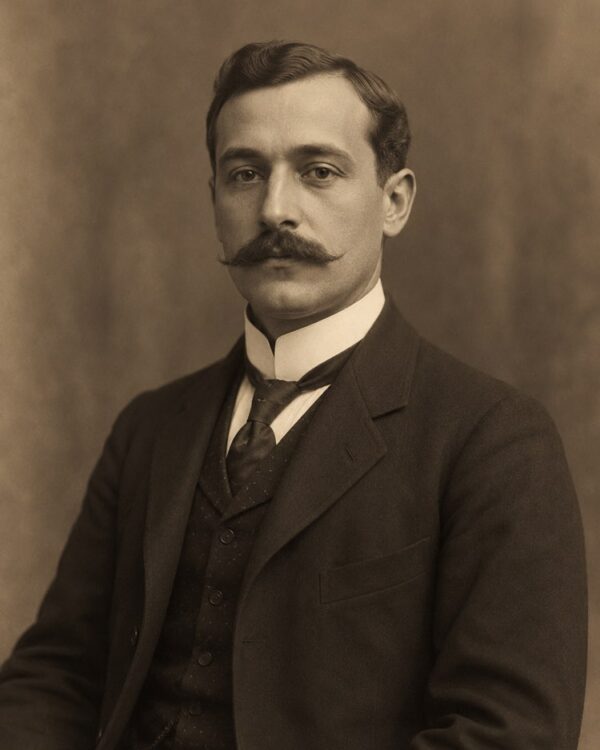
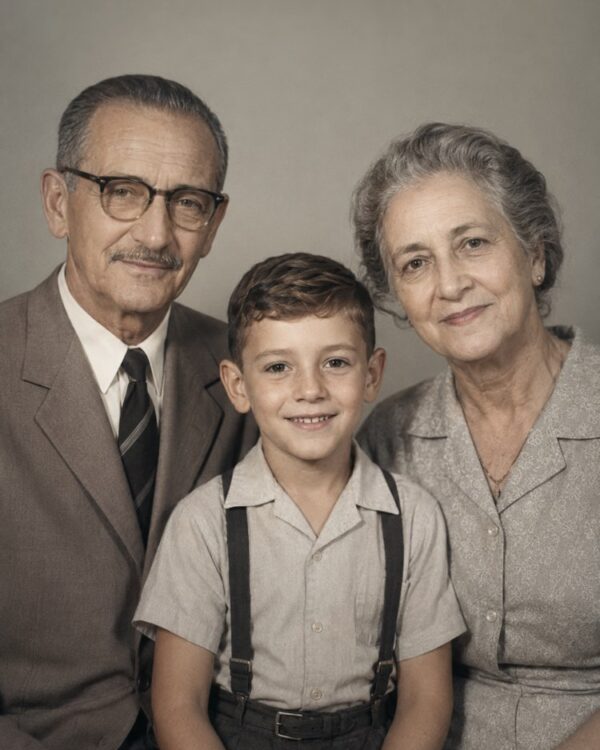
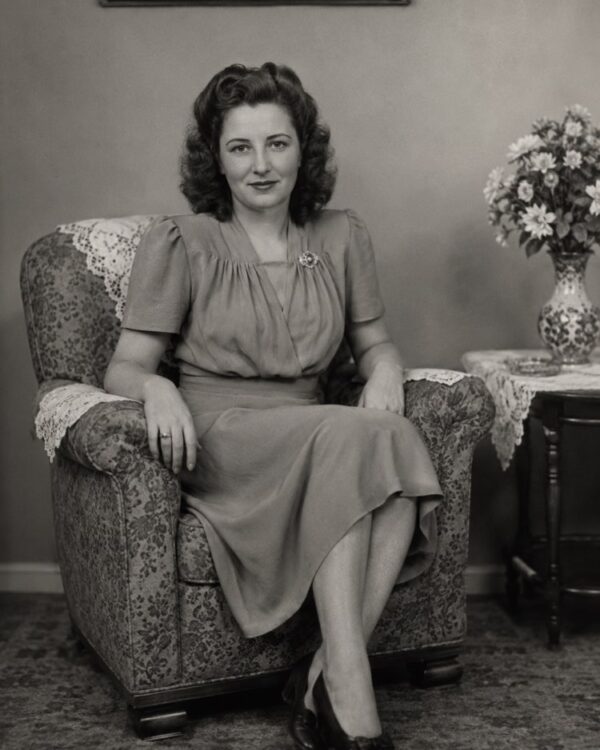
Pull Out and Enlarge One Face from a Group Photo
Prompt
{
"instruction": "Upload your old group photo and generate the restored version with one specific face pulled out and enlarged, preserving the features and the authenticity of the period 100%.",
"task": "crop and enlarge one specific face from an old group photo, turning that person into a sharp individual portrait; recover the detail of the face, the eyes and the hair that were small and grainy in the original photo, improving definition and lighting without hardening the features",
"preserve": "keep the face, the features, the expression, the hairstyle and the clothing of the chosen person exactly as they were in the group photo; do not invent features that could not be seen, only enlarge and define what is there; colours and materials consistent with the period",
"result": "a sharp, natural individual portrait extracted from the group, with realistic skin tones and the look of a real restored photograph, with no artificial appearance",
"style": "Realistic restored photography, natural tones faithful to the period, high definition, 3:4 ratio (portrait).",
"negative": "do not alter the identity or the faces, do not invent people or missing elements, no text, no watermark, no logos"
}
How to use
Pulling out and enlarging one face from a group photo creates an individual portrait of someone who was lost in the middle of the scene, and the process works by uploading the photo with the prompt in Gemini, in NanoBanana or in ChatGPT. 1. Scan the group photo in good light and at the highest resolution you can, to capture every face in detail. 2. Open the image AI you chose and send the attached photo together with the prompt, saying which person should be pulled out. 3. Ask it to crop and enlarge that specific face, recovering the eyes and the hair that came out small. 4. Make it clear that the AI must preserve the features and not invent anything that could not be seen in the group. 5. Generate variations and pick the sharpest, most natural portrait, without hardened features. 6. Save the result in high resolution to keep as an individual portrait. Final tip: sometimes the only record of someone you loved is hidden in a group photo; recover it with care and do not let the AI invent a face the original image never showed.
Works with
ChatGPT
Gemini
NanoBanana
Rate this prompt
📋 Featured in these lists

📖 From the Prompteiro blog
See all posts →
Best ChatGPT Prompts in English: 12 to Use TodayText · August 2, 2026

How to Write a Prompt That Works in ChatGPTCourses · August 2, 2026
AI Prompts for Work and Career: 12 That Actually HelpText · August 1, 2026
How to Write an Image Prompt That Works (With Examples)Images · August 1, 2026
What Is Artificial Intelligence: The Beginner’s GuideCourses · August 1, 2026